 UpCleaner
Why Your iPhone Storage Gets Full So Fast (And How to Stop It)
Wondering why your iPhone storage is full again? Discover the real reasons behind it and how to stop it from happening without losing your data.Views
Introduction
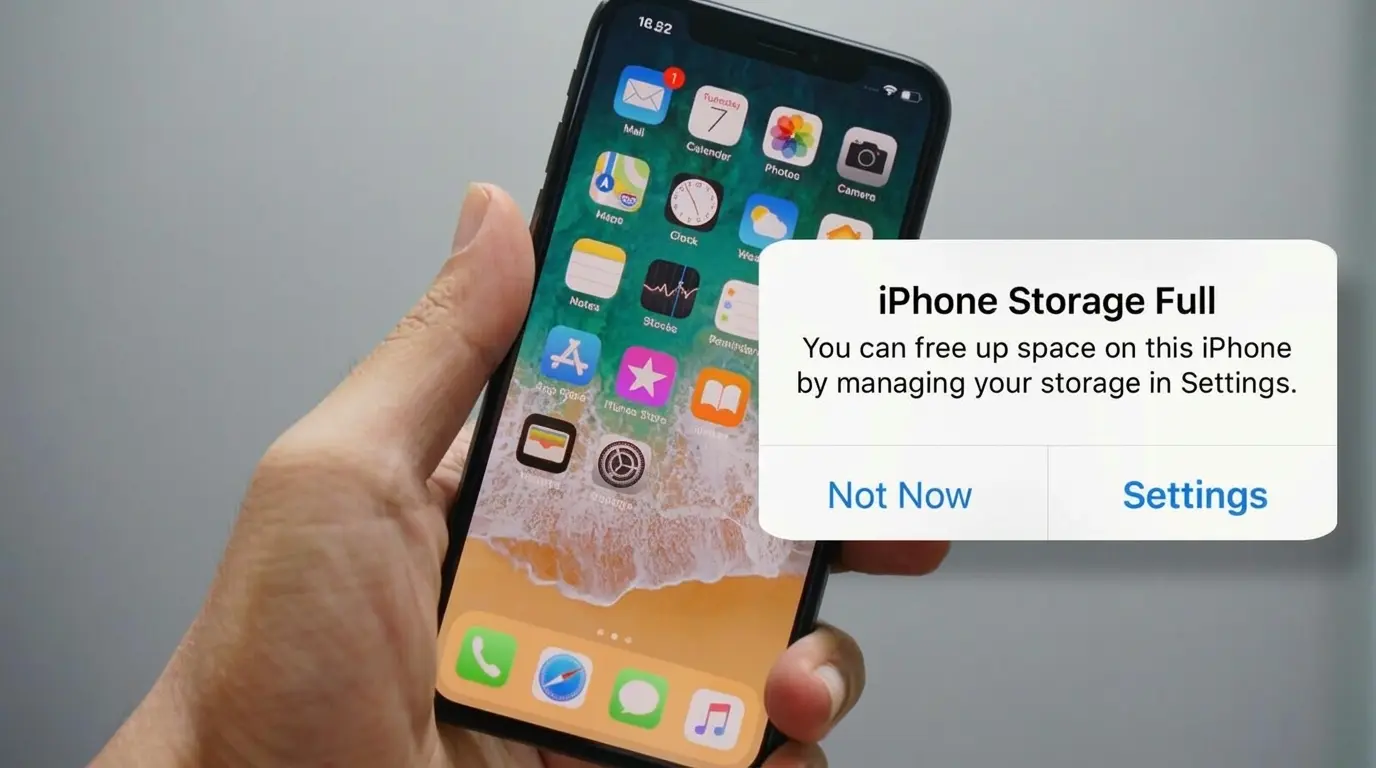
You clear some space on your iPhone, feel relieved and within a few days, the storage is full again.
It doesn’t make sense.
You didn’t download anything major, didn’t take hundreds of photos, yet you’re back to the same problem. This is why many users keep searching: why iPhone storage full again?
The truth is, your iPhone collects hidden data over time. And unless you understand what’s happening behind the scenes, the problem keeps coming back.
The Real Reason Your iPhone Storage Gets Full
Your iPhone doesn’t just store visible files like photos and apps.
It also stores a large amount of hidden data that builds up silently.
Here’s what usually fills your storage:
App cache and temporary files
Duplicate and similar photos
System data and logs
Messages with media attachments
Downloads from apps
Most of this data is not visible but it takes up significant space.
What Is “System Data” on iPhone?
One of the biggest reasons users ask why iPhone storage is full is something called system data.
System data includes:
Cache files
Temporary files
Logs created by apps
Background processes
This category can grow unexpectedly and is hard to control manually.
Understanding these causes will help you prevent the problem. Apps store temporary data to load faster. Over time, this cache builds up and starts consuming large amounts of storage. You may have: Burst shots Edited versions of photos Downloaded images multiple times These duplicates can take up more space than you realize. Messaging apps store: Photos Videos GIFs Even if you don’t notice them, they continue to occupy storage. Apps like streaming or file sharing platforms store offline content. These files remain on your device unless you delete them manually. Temporary files and residual data from deleted apps remain in storage. These are often the biggest hidden contributors.Top Causes of iPhone Storage Filling Up Quickly
App Cache Keeps Growing
Duplicate and Similar Photos
Media in Messages and Apps
Downloaded Files and Offline Content
Hidden Junk Files

Now that you understand the problem, here are practical ways to fix it.
1. Clear App Cache Regularly
Since iPhone doesn’t offer direct cache clearing for all apps:
Delete and reinstall heavy apps
Clear browser cache (Safari settings)
2. Manage Photos Efficiently
Instead of deleting important photos:
Remove duplicates
Keep only the best versions
Organize albums
Steps: Go to Settings → iPhone Storage Identify apps using the most space Remove or offload unused apps Delete old chats Remove large media files Clear unnecessary conversations Files remain in storage even after deletion. Always clear the Recently Deleted folder. Even after doing all this, many users still face storage issues. Here’s why: Hard to identify hidden files Time consuming process Cannot detect similar images Requires constant effort This is why the problem keeps coming back. Instead of repeating manual steps, a smarter solution can simplify the process. Tools like UpCleaner help identify junk files, duplicate photos, and unnecessary data automatically making storage management easier and more efficient. UpCleaner is designed to keep your iPhone storage optimized without risking your data. Key advantages: Detects hidden junk files Finds duplicate and similar photos Organizes storage intelligently Saves time with automated cleanup Instead of manually going through thousands of files, tools like UpCleaner can automatically detect duplicates and help you clean your storage safely. To avoid seeing the storage full message again: Clean storage regularly Monitor large apps Avoid unnecessary downloads Manage photos actively Clear cache periodically Prevention is easier than fixing the problem repeatedly. If your iPhone storage keeps getting full, it’s not just because of photos or apps. Hidden files, cache, and system data are the real reasons behind the problem. Once you understand what’s happening, you can take the right steps to prevent it and keep your device running smoothly. If you want a faster and safer way to manage your iPhone storage, UpCleaner can help you clean junk files, remove duplicates, and keep your device optimized in just a few taps. Q - Why is my iPhone storage full even after deleting files? Q - Why does iPhone storage fill up so fast? A - Due to app cache, duplicate photos, media files, and system data accumulation. Q - How can I stop my iPhone storage from filling up? A - Regular cleaning, managing apps, and removing unnecessary files can help prevent storage issues. Q - What is taking up the most space on my iPhone? A - Photos, videos, apps, and system data are the biggest storage consumers. Q - What is the easiest way to manage iPhone storage? A - Using a smart tool can simplify cleanup and help maintain storage efficiently.3. Review Large Files and Apps
4. Clean Message Attachments
5. Empty Recently Deleted Folder
Why Manual Cleaning Often Fails?
A Smarter Way to Manage iPhone Storage
How UpCleaner Helps Prevent Storage Issues?
Manual vs Smart Storage Management
Best Practices to Keep Your Storage Under Control
Conclusion
FAQs
A - Because hidden data like cache, system files, and residual app data still occupy space.