 UpCleaner
How to Free Up Space on iPhone Without Losing Important Data?
Running out of storage? Learn how to free up space on iPhone without deleting important photos, files, or apps.Views
Introduction
You need space on your iPhone, but you don’t want to delete your photos, messages, or important files.
So what do you do?
Most people think freeing up storage means losing valuable data. But that’s not true. A large portion of your iPhone storage is taken up by hidden files, duplicates, and unnecessary data.
If you’re looking for ways to free up space on iPhone without deleting important data, this guide will show you exactly how to do it safely and efficiently.
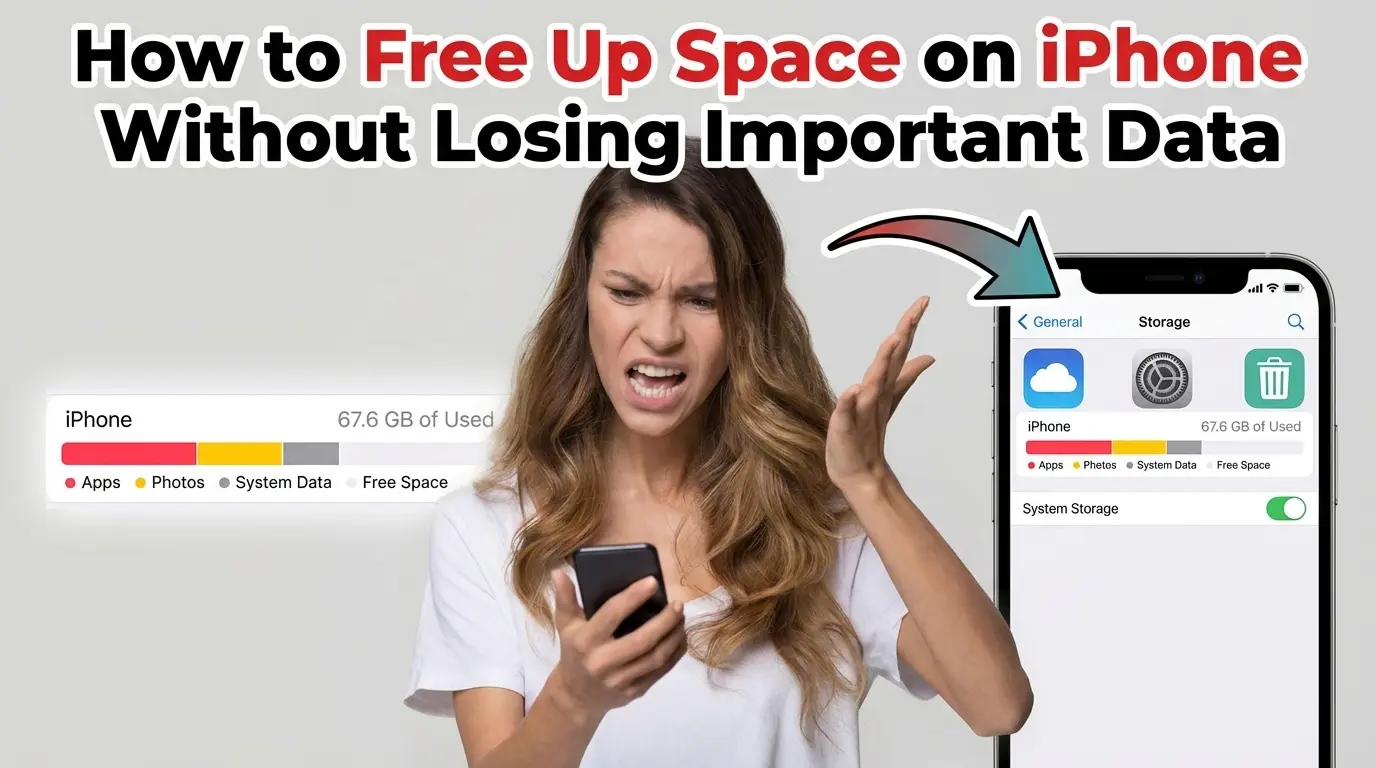
Why Your iPhone Storage Gets Full Even Without Heavy Usage
Many users assume storage fills up only because of photos or videos.
But the real reason is different.
Your iPhone constantly collects background data.
Here’s what takes up space:
App cache and temporary files
Duplicate and similar photos
System data and logs
Media from messaging apps
Downloaded files
Even if you don’t actively use your phone heavily, these files keep growing.
Hidden Storage You Don’t See
One of the biggest challenges is invisible storage usage.
This includes:
System data
Cached app files
Residual files from deleted apps
These files are not easy to find, but they can consume several GBs.
How to Free Up Space on iPhone Without Deleting Important Data
Here are practical, safe methods you can follow.
1. Clear Safari Cache and Browser Data
Steps:
Open Settings
Go to Safari
Tap “Clear History and Website Data”
This removes unnecessary browsing files.
2. Offload Unused Apps Instead of Deleting Them
Steps:
Go to Settings → General → iPhone Storage
Select unused apps
Tap “Offload App”
This removes the app but keeps your data safe.
3. Remove Duplicate and Similar Photos
You don’t need to delete all photos just remove unnecessary copies.
Steps:
Open Photos app
Go to Duplicates folder
Merge duplicate images
This keeps the best version and removes extra files.
4. Delete App Cache (Indirect Method)
Some apps store large amounts of hidden data.
Solution:
Delete and reinstall apps
Clear data inside app settings (if available)
5. Clean Message Attachments
Messages often store large files.
Steps:
Delete old conversations
Remove large attachments
Clear media heavy chats
6. Empty Recently Deleted Folder
Files remain in storage even after deletion.
Steps:
Open Photos
Go to Recently Deleted
Tap Delete All
Why Manual Cleaning Takes Time
While these methods work, they can be slow.
Common issues:
Hard to identify hidden files
Repetitive process
Cannot detect similar photos
Requires constant maintenance
This is why storage problems often return.
A Smarter Way to Free Up iPhone Storage Safely
Instead of manually going through thousands of files, tools like UpCleaner can automatically detect duplicates, junk files, and unnecessary data helping you clean your storage safely without losing important files.

How UpCleaner Helps You Free Up Space Without Data Loss
UpCleaner is built for safe and efficient storage management.
Key benefits:
Detects hidden junk files
Finds duplicate and similar photos
Organizes storage intelligently
Provides quick cleanup options
It focuses on removing only unnecessary data while keeping your important files safe.
Manual vs Smart Cleaning Comparison
Best Practices to Maintain Free Space
Once you clean your storage, maintain it regularly.
Clear cache periodically
Manage downloads
Review apps monthly
Organize photos
Avoid storing unnecessary files
Consistency prevents future storage issues.
Conclusion
Freeing up space on your iPhone doesn’t have to mean deleting your important memories or essential data. Most storage issues come from hidden junk files, cache, duplicates, and unused app data not the things you actually care about.
By using simple methods like clearing cache, offloading apps, removing duplicates, and managing message attachments, you can reclaim significant space safely. However, manual cleaning can be time-consuming and inconsistent.
That’s where smarter solutions come in. Tools like UpCleaner simplify the process by automatically identifying unnecessary files while keeping your important data intact. With the right approach, you can maintain a fast, clutter-free iPhone without the risk of losing valuable information.
FAQs
Q - Can I free up iPhone storage without deleting photos?
A - Yes, you can. Instead of deleting photos, you can remove duplicate images, clear cache files, and optimize storage settings to free up space without losing important pictures.
Q - What is taking up hidden space on my iPhone?
A - Hidden storage is usually consumed by app cache, system data, temporary files, message attachments, and residual files from deleted apps.
Q - Is it safe to clear cache on iPhone?
A - Yes, clearing cache (like Safari data or app cache) is completely safe. It only removes temporary files and does not affect your personal data.
Q - What does “Offload App” mean on iPhone?
A - Offloading an app removes the app itself but keeps all its data. When you reinstall the app, your data is restored automatically.
Q - Why does my iPhone storage fill up again after cleaning?
A - Storage fills up again because apps continuously generate cache and temporary files. Regular maintenance or using a smart cleaning tool can help prevent this.
Q - How often should I clean my iPhone storage?
A - It’s best to clean your iPhone storage at least once a month to prevent unnecessary data buildup.
Q - Can apps help clean iPhone storage safely?
A - Yes, reliable tools like UpCleaner can automatically detect junk files, duplicates, and unnecessary data, helping you free up space without risking important files.