 UpCleaner
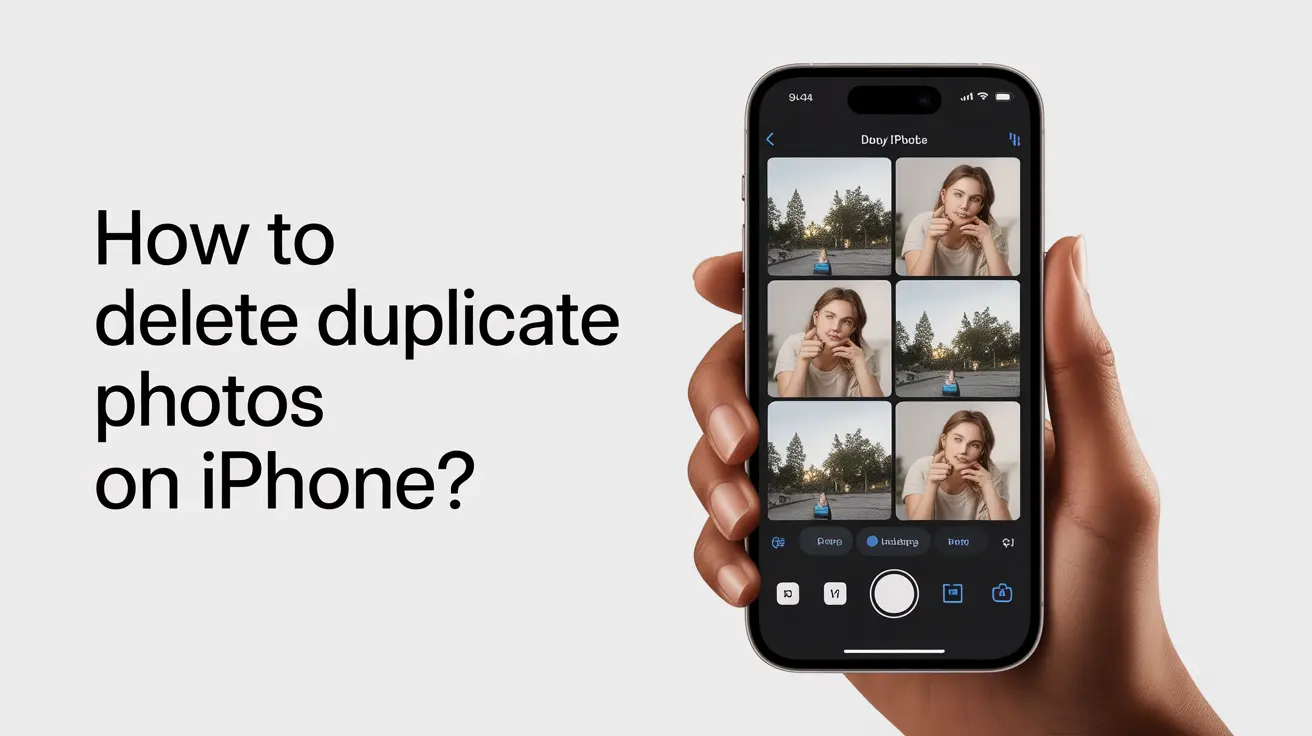
How to Delete Duplicate Photos on iPhone (Step-by-Step Guide)
Free up storage and organize your iPhone by removing duplicate photos safely without losing important memories.Views
Introduction
You open your photo gallery to find one picture and end up scrolling through hundreds of nearly identical images.
Sound familiar?
Duplicate photos build up quietly over time, taking up space and making it harder to find the photos you actually care about. Many users don’t realize how much storage they lose until they try to install a new app or take a photo and see the “Storage Full” message.
If you’re searching for how to delete duplicate photos on iPhone, this guide will show you simple, safe, and effective ways to clean your photo library without losing important memories.
Why Duplicate Photos Are a Problem ?
Duplicate photos do more than just clutter your gallery.They directly impact your device’s performance and storage.
Common problems caused by duplicates:
Storage fills up faster
Gallery becomes messy and hard to navigate
Backup size increases (iCloud storage gets consumed)
iPhone performance may slow down
Most users underestimate how many duplicate or similar photos they actually have.
What Causes Duplicate Photos on iPhone ?
Understanding the cause helps you prevent the problem in the future.
1. Burst mode photos - When you take multiple shots quickly, your iPhone saves several similar images.
2. Editing photos - Each time you edit and save a photo, a new version is created.
3. Multiple downloads - Images from apps like WhatsApp, Instagram, or email can get saved more than once.
4. iCloud syncing issues - Sometimes syncing across devices can create duplicate copies.
5. Screenshots and saved media - Repeated screenshots or saved files often go unnoticed.
How to Delete Duplicate Photos on iPhone (Manual Method) ?
Apple provides a built-in feature to help you remove duplicate images.
Follow these steps:
Open the Photos app
Scroll down to “Utilities”
Tap on “Duplicates”
Review grouped duplicate photos
Tap “Merge” next to the duplicates
Confirm to keep the best version
What happens when you merge photos:
Keeps the highest quality image
Removes duplicate copies
Combines important data like captions and favorites
Limitations of the Built-in Method
While useful, the manual method has limitations.
Detects only exact duplicates
Cannot identify similar photos
Requires manual review
Time consuming for large galleries
If you have thousands of photos, this method can quickly become overwhelming.
A Smarter Way to Remove Duplicate Photos
Instead of manually going through every photo, a smarter approach can save time and effort.
Tools like Upcleaner can automatically detect duplicate and similar images, helping you clean your storage safely without spending hours scrolling.
This approach is especially useful if:
Your gallery has thousands of photos
You frequently take burst shots
You download media from multiple apps
How UpCleaner Helps You Clean Duplicate Photos ?
UpCleaner is designed to simplify photo management and storage cleanup.
Key advantages:
Detects both duplicate and similar photos
Uses smart scanning to group images
Allows quick review before deletion
Ensures safe cleaning without losing important files
Steps to use Upcleaner:
Install and open the app
Allow access to your photo library
Run a scan for duplicate and similar photos
Review suggested files
Delete unwanted images in one tap
This process turns hours of manual work into a few minutes.

Manual vs Smart Cleaning Comparison
Best Practices Before Deleting Photos
Before removing photos, keep these tips in mind:
Backup important photos to iCloud
Review images before deleting
Avoid bulk deletion without checking
Keep original versions of important pictures
A careful approach ensures you don’t lose valuable memories.
How to Prevent Duplicate Photos in the Future ?
Cleaning your gallery once is not enough. You need to maintain it.
Here are simple ways to prevent duplicates:
Avoid overusing burst mode
Manage autodownload settings in apps
Delete unnecessary photos regularly
Organize albums for better control
Conclusion
Duplicate photos can quickly take over your iPhone storage without you realizing it.
While Apple offers a built-in solution, it may not be enough for users with large photo libraries.
A smarter approach helps you clean your storage faster, stay organized, and keep your important memories safe all without unnecessary effort.
If you want a faster and safer way to clean your iPhone storage, UpCleaner can help you remove duplicate photos and free up space in just a few taps.
Q - How do I delete duplicate photos on iPhone automatically? A - You can use a smart cleaning tool that scans and removes duplicate and similar photos in just a few taps. Q - Does iPhone have a duplicate photo remover? A - Yes, the Photos app includes a “Duplicates” album where you can merge identical images. Q - Can I recover deleted duplicate photos? A - Yes, deleted photos stay in the “Recently Deleted” folder for up to 30 days. Q - Why does my iPhone have so many duplicate photos? A - Duplicates are created due to burst mode, editing, multiple downloads, and syncing issues. Q - What is the fastest way to remove duplicate photos on iPhone? A - Using an automated cleaning tool is the fastest and most efficient method.FAQs